VibeAlarm

iPhone / iPad · iOS 26.4+

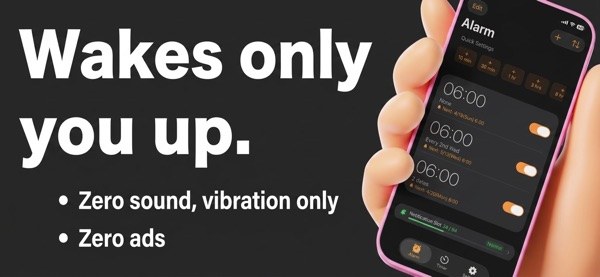
No sound.Just a vibration.

An alarm clock that wakes you with vibration instead of sound. Choose from six vibration patterns and let the person next to you sleep on.

Download on the App StoreFree (in-app purchases)

Scan with your iPhone

VibeAlarm

When it helps

What it does

  1. 01

    Six vibration patterns

    Choose Standard, Gentle, Rapid, Pulse, SOS or Escalating for each alarm. You can also record your own tapped rhythm as a pattern.

  2. 02

    Detailed repeat schedules

    Repeat on chosen weekdays, on the Nth weekday of the month such as the 2nd Wednesday, on specific dates, or just once. Alarms can have labels too.

  3. 03

    Help against oversleeping

    Set snooze anywhere from 1 to 30 minutes. Notifications repeat until you dismiss them, and the full-screen alert is dismissed or snoozed with a swipe.

  4. 04

    A timer that vibrates

    Set hours, minutes and seconds, and the timer alerts you with vibration. Recently used durations are kept as presets.

  5. 05

    Apple Watch, widgets and Siri

    Check and dismiss alarms on Apple Watch. Home Screen widgets, Live Activities on the Lock Screen and Dynamic Island, and Siri Shortcuts are supported.

In detail

01

Six ways to be woken up

Choose from six vibration patterns: Standard, Gentle, Rapid, Pulse, SOS and Escalating. You pick the pattern for each alarm separately.

  • Standard: classic double-tap
  • SOS: the Morse code pattern
  • Standard and Gentle are free
  • The other four need Pro
02

Turn your own rhythm into a pattern

Start recording, then tap or hold the pad, and your rhythm becomes a vibration pattern. You can name it, save it and play a preview before using it.

  • Intensity: weak, medium or strong
  • Pattern names up to 20 characters
  • Custom patterns are a Pro feature
03

Vibration that builds up as you sleep on

Turn on Escalating mode and the vibration gets stronger at the interval you choose. The four stages are labeled from Gentle to Maximum.

  • Interval: 15, 30, 45 or 60 seconds
  • Takes priority over the vibration setting when on
  • A Pro feature
04

Schedules that fit a busy calendar

Repeat weekly on chosen days, on the Nth weekday of the month (1st to 5th), on specific dates, or just once. Weekday and weekend presets are included.

  • Add several specific dates to one alarm
  • Add a custom label
  • Sort the list by time, created date, label or your own order
05

Works with Apple Watch, widgets and Siri

On Apple Watch you can see your alarms, switch them on or off, and dismiss or snooze. Home Screen widgets and Live Activities on the Lock Screen and Dynamic Island are supported too.

  • Widgets: next alarm, list, on/off toggle, quick timer
  • Add alarms with Siri Shortcuts
  • Option to ring on Apple Watch only
06

See how many notification slots are left

iOS allows an app to schedule up to 64 local notifications. VibeAlarm shows your current usage and how many slots each alarm takes.

  • Four states: safe, caution, warning, full
  • More repeat days use more slots
  • Notifications are rescheduled whenever you open the app

How it works

  1. 1

    Allow notifications

    The first-launch guide asks for notification permission. Alarms and timers are delivered as notifications, so they will not fire without it.

  2. 2

    Add an alarm

    Tap Add Alarm, set the time, then choose a label, a repeat schedule and a vibration pattern before saving.

  3. 3

    Check settings if you feel nothing

    The Vibration Guide in Settings lists what to check: system vibration under Accessibility, vibration on silent, notifications and Focus modes.

  4. 4

    Dismiss or snooze when it goes off

    On the full-screen alert, swipe up to dismiss or swipe sideways to snooze.

Screens

The alarm list
The alarm list

FAQ

Is VibeAlarm free?

The app is free to download. The free version allows up to 3 alarms and the Standard and Gentle vibration patterns. Unlimited alarms and the other features are unlocked with Pro.

What Pro plans are there?

Monthly, annual and lifetime. Lifetime is a one-time purchase, while monthly and annual are auto-renewing subscriptions. Check the App Store for current prices.

Does it make any sound?

It is designed around vibration, and with your device's silent setting it can run on vibration alone. Apple Watch cannot play an app's own sound, so it uses the standard notification sound. Turn on Silent Mode on the Watch to keep it to vibration.

What if I feel no vibration?

Open the Vibration Guide in Settings. It covers system vibration under Accessibility, vibration on silent, notification permission for VibeAlarm and Focus modes. Also make sure the app has not been force-quit.

Will an alarm go off if the app is closed?

Yes. Alarms are scheduled as notifications, so they arrive even when the app is closed. With the screen off, vibration comes through the standard iOS notification and is not as detailed as the pattern you get while the app is open.

What can I do on Apple Watch?

You can view your alarms, switch them on or off, and dismiss or snooze them. Time, repeat and label are edited on iPhone. There is also an option to ring on Apple Watch only.

Can I run more than one timer at once?

No, only one timer runs at a time. Starting a new timer stops the current one. A notification still arrives at the finish time if you close the app.

Which devices and languages are supported?

iPhone and iPad running iOS 26.4 or later. The App Store lists several languages, including English and Japanese.

Tomorrow morning, wake up to a vibration.

Download on the App Store
VibeAlarmGet